Implementation
Services that are offered in the b4A Service Portal are workflows in the Automic Automation Engine that may use one or more PromptSets for input parameters. For technical reasons, the workflows must always be generated at runtime if they contain PromptSets. The functionalities supported in this context are described below.
The workflows can execute any tasks. There are no restrictions in terms of number or object type. Rules must be observed when it comes to the PromptSets used and notification objects.
Input parameters - PromptSets
The following table shows the supported attributes and functions of the various element types. The attributes Data reference, Label and Variable name are supported by all and are not listed separately in the table. Manual setting is always possible for the attribute default value. Setting the default value via variables is supported with the curly brackets notation ({...}) as well as with system variables.
| Type | Attributes | Note |
|---|---|---|
| Heading/Text |
| This element can be used without restriction. Longer texts are wrapped and therefore displayed in full and can help to explain forms. |
| number |
| |
| Text field |
| |
| combobox |
| |
| radio button |
| |
| Checkbox |
| |
| Time/Date |
| All types are supported for this element (Date, Timestamp and Time) |
| File upload (text field) | - | In the PromptSet object, this field is inserted as a text field (More details) |
| Dynamic text | - | In the PromptSet object, this field is inserted as a text field (More details) |
| Complex lists | - | In the PromptSet object, this field is inserted as a text field (More details) |
| Switch | - | In the PromptSet object, this field is inserted as a text field (More details) |
User-defined input fields
License Information
This feature is only available in the full version.
b4A Service Portal Essentials – Feature SetThe b4A Service Portal extends the options for input masks compared to the Automic Web Interface. On the one hand, there are new input fields and, on the other, the options for data sources and usable attributes have been expanded. These techniques are described below.
General
In order to be able to use the extended capabilities, these must be saved to the PromptSet objects. There are two techniques for this. The information can be saved on the fields that have the User-defined attribute option. Alternatively, the data for all fields can be saved in the structured documentation of the PromptSet object as shown in the following image. This variant is recommended as the user-defined attribute has a length limit of 255 characters. Which structured documentation of the PromptSet objects is to be used can be defined in the configuration file api.json.
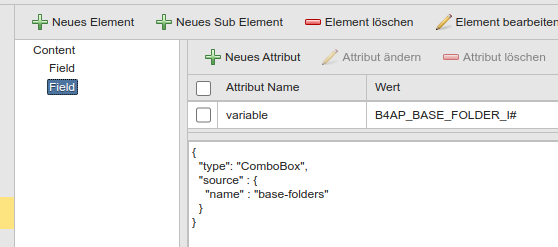
The information is stored in JSON format. Script variables can be used in the definitions. There are the following differences between PromptSets directly in the service workflow and those associated with a service’s tasks.
- PromptSets in the service workflow
- In these definitions, object variables from the workflow object can be used. The values of the object variables can use the {} notation, which is resolved in advance.
- PromptSets in Service Tasks
- Variables known at the time the task is activated can be used in the definitions.
The following sections explain the exact definitions for each variant.
Timestamp, time and date
The same options are supported for these three field types.
{
  "type": "Timestamp|Date|Time",
  "options": {
    "required": true,
    "hidden": false,
    "min": "2025-01-01 00:00",
    "max": "2040-31-12 00:00",
    "resets": ["B4A_VAR1#", "B4A_VAR2#"]
  }
}
Heading/text
{
  "type": "label",
  "options": {
    "hidden": false
  }
}
Text field
The user-defined version of this field supports the same functions as the variant in the Automic Web Interface.
- required: If the value is set to true, then at least one value must be selected
- hidden: If the value is set to true, then the field is hidden
- upperCase: If the value is set to true, upper case letters are allowed
- regex: Defines a regular expression that the entered text must match
- multiline: If the value is set to true, then multiline texts are allowed
- showAsPassword: If the value is set to true, the text is not displayed, only asterisks are displayed
- resets: List of variables whose values are to be reset if the value changes. The leading & must be omitted from the variable name.
{
  "type": "TextView",
  "options": {
    "required": true,
    "hidden": false,
    "upperCase": false,
    "regex": "b4A.*",
    "multiline": false,
    "showAsPassword": false,
    "resets": ["B4A_VAR1#", "B4A_VAR2#"]
  }
}
Number field
The number field supports the following options:
- min: Optional minimum integer value
- max: Optional maximum integer value
- required: If set to true, a value must be provided. Default: false
- hidden: If set to true, the field is hidden. Default: false
- resets: A list of variables whose values should be reset when the value changes. Omit the leading & from the variable name.
{
  "type": "Number",
  "options": {
    "min": 0,
    "max": 100,
    "required": true,
    "hidden": false,
    "resets": ["B4A_VAR1#", "B4A_VAR2#"]
  }
}
RadioGroup
Fields of this type allow the selection of exactly one value from a predefined list of values.
The following options are supported for this type.
- defaultValue: Defines the default value. The value must be an object with the attributes label and value.
- required: If set to true, at least one value must be selected
- hidden: If set to true, the field is hidden
{
  "type": "RadioGroup",
  "options": {
    "defaultValue": { "label": "AE24-0012", "value": "AE24-0012" },
    "required": true,
    "hidden": false
  }
}
CheckBox
Fields of this type allow the user to select none, one, or more values from a predefined list of values.
The following options are supported for this type.
- resets: A list of variables whose values should be reset when the value of this option changes. Omit the leading & from the variable name.
- required: If set to true, at least one value must be selected
- hidden: If set to true, the field is hidden
- separator: If a character is specified, the selected values are combined into a string using the specified separator. If none is specified, a semicolon (;) is used
- defaultValue: Defines the default value. The value must be an object with the attributes label and value.
{
  "type": "CheckBox",
  "options": {
    "resets": ["B4A_PARAM1_I#", "B4A_PARAM2_I#"],
    "required": true,
    "hidden": false,
    "separator": "; ",
    "defaultValue": [
      { "label": "AE24-0012", "value": "AE24-0012" },
      { "label": "AE24-0014", "value": "AE24-0014" }
    ]
  }
}
ComboBox
Fields of this type allow you to select a value from a predefined list of values.
The following options are supported for this type.
- resets: A list of variables whose values should be reset when the value of this option changes. Omit the leading & from the variable name.
- dynamicReload: If the value of this option is true, the last of the allowed values is reloaded when the combo box is opened.
- required: If set to true, at least one value must be selected.
- hidden: If set to true, the field is hidden.
- defaultValue: Defines the default value. The value must be an object with the attributes label and value.
{
  "type": "ComboBox",
  "options": {
    "resets": ["B4A_PARAM1_I#", "B4A_PARAM2_I#"],
    "dynamicReload": true,
    "required": true,
    "hidden": false,
    "defaultValue": { "label": "AE24-0012", "value": "AE24-0012" }
  }
}
File upload
An additional field type is the file upload. This makes it possible to transfer files directly to an automation process. To use this, a text field must be inserted in the PromptSet object. In the field, the option User-defined field must be filled with the following text in JSON format:
{
  "type": "FileUpload",
  "options": {
    "required": true,
    "hidden": false
  }
}
Dynamic text
The heading/text element in a PromptSet object can display a static text in an input mask. Such text can be used, for example, to explain the input fields. The dynamic text field is an extension of this field and enables a changeable text to be displayed. This is realized via a user-defined data source (Details). The change of the text is triggered by the change of values in other input fields in the PromptSet object. You can define which fields should trigger the changes. The displayed text can contain the values of the other fields or object variables of the task. The following is an example of such a configuration.
{
  "type": "DynamicLabel",
  "source": {
    "name": "dynamic-label",
    "options": {
      "dependsOn": [
        { "variable": "B4AP_APPLICATION_I#", "default": "" },
        { "variable": "B4AP_FUNCTION_I#", "default": "" }
      ],
      "onEmpty": "Select application and function to see the generated b4A Package name",
      "else": "Generated b4A Package name: %(B4AP_APPLICATION_I#.value).%(B4AP_FUNCTION_I#.value)"
    }
  },
  "options": {
    "hidden": false
  }
}
The two attributes onEmpty and else define the respective text that the field should display. onEmpty defines the text in the event that all attributes on which the field depends are empty. If at least one of the fields has a non-empty value, the text from the attribute else is displayed. In both attributes, b4A expressions can be used to generate the text. All fields from the PromptSet object are available. Each field has two sub-attributes. There is the attribute label, which contains the text to be displayed in the input mask, and there is also the attribute value, which contains the text that is transferred to the service workflow.
For example, if the variable B4AP_APPLICATION_I# contains a combo box that receives its data from another user-defined data source that provides the following list, then the b4A expression %(B4AP_APPLICATION_I#.label) can be used to access the value best4Automic or SAP Business Warehouse (depending on which value is currently selected). The expression %(B4AP_APPLICATION_I#.value) can be used to access the values B4A or SAP_BW accordingly.
The further structure of the configuration is explained in more detail in the following section, as it corresponds to a standard that is used by all extensions.
[
  {
    "value": "B4A",
    "label": "best4Automic"
  },
  {
    "value": "SAP_BW",
    "label": "SAP Business Warehouse"
  }
]
In the example configuration, the dependsOn attribute shows how the dependency on the other fields is defined. The variable and a default value must be defined once for each field. If the specified field is not yet set, the default value is used.
Complex Lists
Complex lists allow you to capture structured data sets and pass them to a service or a task. They are displayed as a table in the b4A Service Portal. There, you can add, remove, or edit elements.
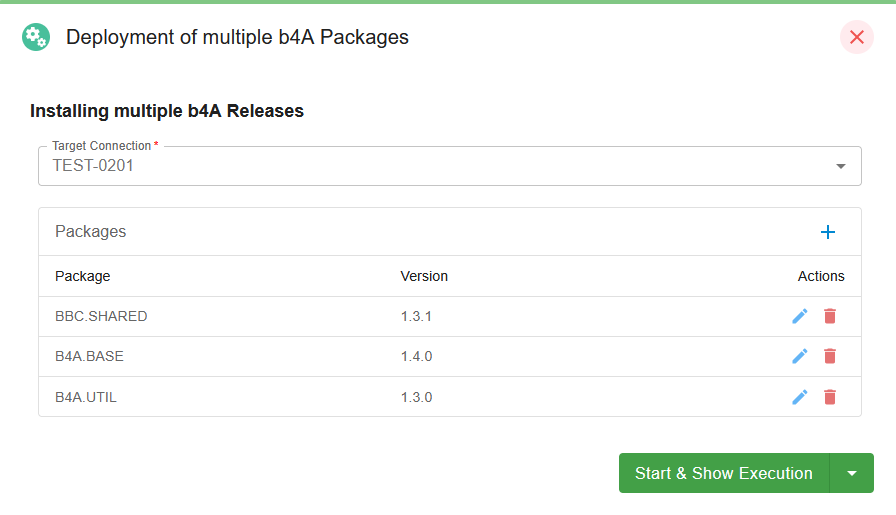
The columns and their respective input types can be dynamically configured. Technically, this is based on another PromptSet, which must be specified in the configuration.
{
  "type": "ComplexList",
  "source": {
    "name": "B4A.PM.PRPT.REPOSITORY_PACKAGES"
  },
  "options": {
    "required": true
  }
}
Complex lists support the following options:
- required: If the value is set to true, a value must be specified. Default value: false
- hidden: If the value is set to true, the field is hidden. Default value: false
- resets: List of variables whose values should be reset when the value changes. Omit the leading & from the variable name.
Switch
A Switch can be used to implement a Boolean option. This option can only take the values true and false. In addition to Boolean options, these fields can also be used to show or hide other fields.
A field of type Switch supports the following options:
- resets: A list of variables whose values should be reset when the value of this option changes. Omit the leading & from the variable name.
- required: If the value is set to true, at least one value must be selected
- hidden: If the value is set to true, the field is hidden
- defaultValue: Defines the default value. Only true and false may be specified as values here. All other values are displayed as a TextView.
"options" : {
    "resets": ["B4A_PARAM1_I#", "B4A_PARAM2_I#"],
    "required": true,
    "hidden": false,
    "defaultValue": true
}
User-defined data source
Input fields such as combo boxes, checkboxes and radio buttons use data sources to define the possible values. The Automic Automation Engine offers the possibility to create dynamic lists with variable objects. In some use cases, this may not be sufficient or may lead to longer waiting times. User-defined data sources are supported in order to solve this and also to offer the highest possible degree of flexibility. While some such data sources are part of the b4A RESTful API, other customer-specific data sources can also be added.
To use such data sources, a field of type text field must be defined in the PromptSet implementations. The configuration is carried out as described in General.
The following sample configuration shows the basic structure of a user-defined data source. The value for type defines the type of field to be displayed in the Service Portal. The values DynamicLabel, ComboBox, CheckBox and RadioGroup are possible here. The source field is used to specify the data source. Here, name defines the name of the data source and options for the respective data source are defined below options. Which data sources are available in the product and which options they have can be found in the b4A RESTful API documentation.
{
    "type": "ComboBox|CheckBox|RadioGroup|DynamicLabel",
    "source": {
        "name": "<name of the data source>",
        "options": {
            "<options of the data source>",
        }
    },
    "options": {
        "<dependent on type>",
    }
}
FEEL Expressions
FEEL (Friendly Enough Expression Language) comes from the world of BPMNv2 and is part of the DMN specification (see chapter 10). This language allows expressions for conditions to be defined in a user-friendly way.
The b4A Service Portal offers the possibility to realize more dynamics in input masks by means of FEEL. Attributes can change their value while the form is being filled out. For example, the attribute required can not only contain a boolean value, but also a FEEL expression that looks like this:
COMBOBOX1 = "PACKAGES"
The expression states that the attribute required should be set to true if the field of the variable COMBOBOX1# assumes the value PACKAGES. This dynamic is possible with the following attributes:
- required
- hidden
Supplied data source
- base-folders
- Provides the list of all configured base folders
- packages
- Returns the list of all b4A Package in a configured client.
| Option | Description | Mandatory |
|---|---|---|
| devConnection | Connection to the development client | yes |
The devConnection option can be used to define the client.
- connections
- Returns the list of all configured connections
- dynamic-label
- Is used for the dynamic text fields to configure the texts to be displayed
| Option | Description | Mandatory |
|---|---|---|
| dependsOn | List of fields on which this field depends | yes |
| onEmpty | If all fields on which this field depends are empty, this text is displayed | yes |
| else | The text is generated from this template if at least one field from the dependency list has been set | yes |
- branches
- Returns the list of all Git branches for a b4A Package.
| option | description | mandatory |
|---|---|---|
| devConnection | Connection to the development client | yes |
| repository | Name of the | yes |
| pattern | A pattern to which all branches to be listed must correspond by name | no, default value is .* |
- repository
- Can either provide the list of all b4A Packages in the release repository or the list of available versions of a b4A Package.
| option | description | mandatory |
|---|---|---|
| operation | 'packages' or 'version', depending on what is to be listed | yes |
| package | for the 'versions' operation, the option for the name of the package must be specified | yes |
quick-search Returns the results of an object search. Optionally, the object type can also be specified in addition to the partial object name
| option | description | mandatory |
|---|---|---|
| name | partial object name | yes |
| type | object type | no |
Highlighted Fields
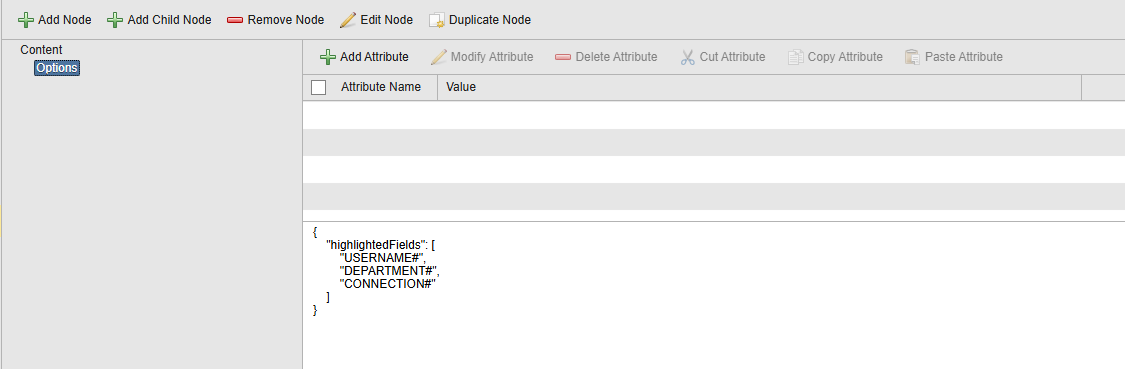
For PromptSets, specific parameters can be defined to be highlighted in the form view.
To enable this feature, the corresponding options must be configured in the configuration.
The parameters that should be highlighted are defined in the structured documentation of the corresponding PromptSet object, as shown in the following image.
The structured documentation used for PromptSet objects can be specified in the api.json configuration file.
Redirection of PromptSets
License Information
This feature is only available in the full version.
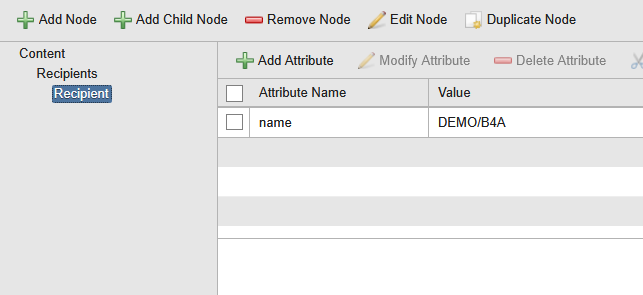
b4A Service Portal Essentials – Feature SetBy default, PromptSets are sent to the person who started the service. Using an entry in the structured documentation of the object that has the PromptSet attached, the PromptSet can be redirected to another person. To do this, an entry must be created in the documentation tab configured in api.json. To redirect PromptSets to multiple recipients, add additional Recipient entries in the structured documentation according to the following scheme.
In order for the PromptSet to be redirected, the Take over activity privilege must be set for the entered user.
Notifications - Approvals
The b4A Service Portal supports services that contain authorizations. This makes it possible to integrate services that must be confirmed or rejected by a member from a list of groups before execution. Technically, workflows in the Automic Automation Engine use the notification objects (CALL) for this mechanism. The type Request is supported with all possible priorities. The escalation options are not mapped by the b4A Service Portal.
An extension that the b4A Service Portal offers for the notifications is the option to use HTML for formatting in the message. This means that structures such as tables or lists can also be used and displayed.